Save 20% yearlyGrok Imagine from $23.90/month, billed annuallyView plans
Video to Video AI
Use an existing clip to guide a new scene or visual style. Add source footage, write a focused transformation prompt, and compare the generated take.
Drag to reorder. Use the Left and Right Arrow keys when a reference is focused.
100 est.
Wan 3.0: MP4 or MOV · 1–15s per clip · 15s total · up to 5 clips · 50 MB per clip. Longer videos are blocked before upload. Output duration does not trim your reference.
How can you create a new take from existing footage?
Use an existing clip to guide a new scene or visual style. Add source footage, write a focused transformation prompt, and compare the generated take.
Grok Imageine
01
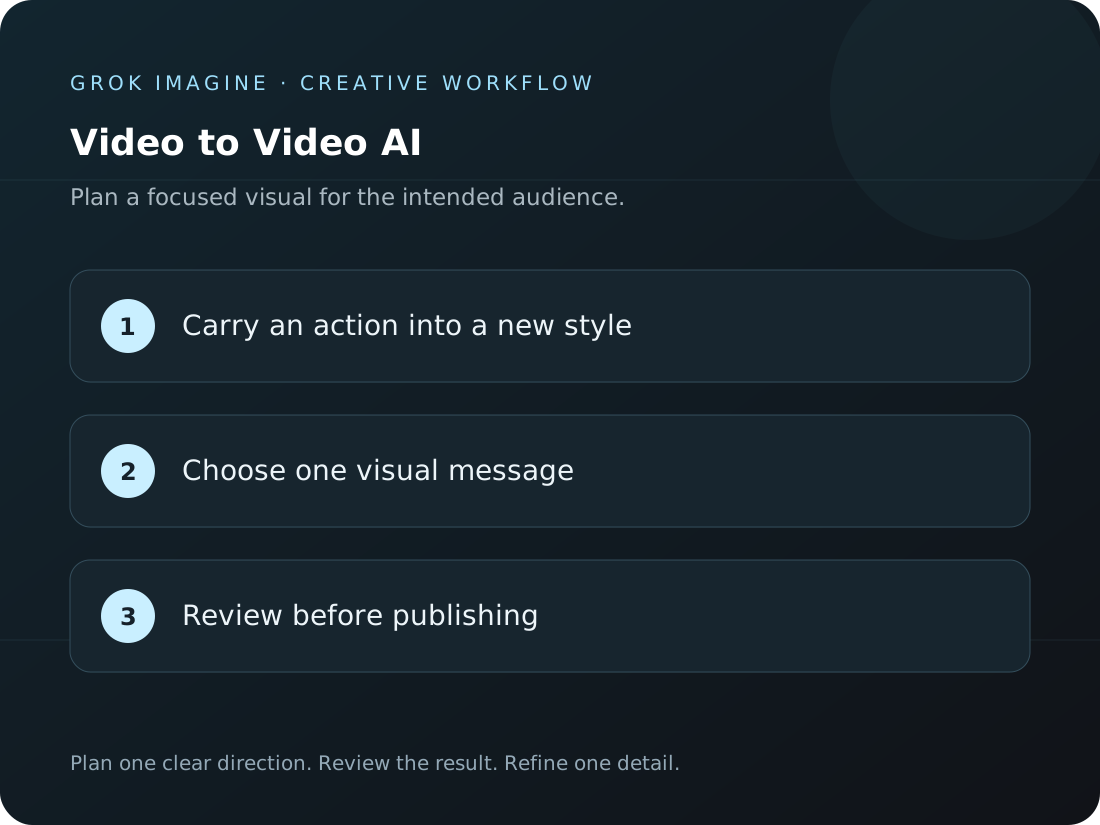
Carry an action into a new style
Use existing movement as a starting point while describing a new visual treatment. A starting brief could be: Keep the subject walking, reinterpret the scene as a hand-painted animation with soft pastel colors. The reference-video workflow accepts image or video material supported by the composer, with a prompt describing the new direction. Actual inputs depend on the selected model and the upload options shown in the interface.
Grok Imageine
02
Explore a different setting
Describe a new environment and the details that should remain recognizable. A starting brief could be: Move the scene to a quiet desert at sunset, retain the slow forward camera motion. Reference media can guide a subject, composition, or visual direction; it does not promise a frame-by-frame copy. Review the result and make sure you have permission to use the source material.
Grok Imageine
03
Change one thing per take
A focused transformation makes it easier to compare the source and generated result. A starting brief could be: Keep the framing and action, change the lighting to dramatic blue hour with subtle fog. Settings vary by model. Before submitting, review the supported inputs, aspect ratios, output options, and credit estimate shown in the composer. After generation, inspect the subject, text, product details, and overall composition before saving a result.
Grok Imageine
04
How can I compare model settings?
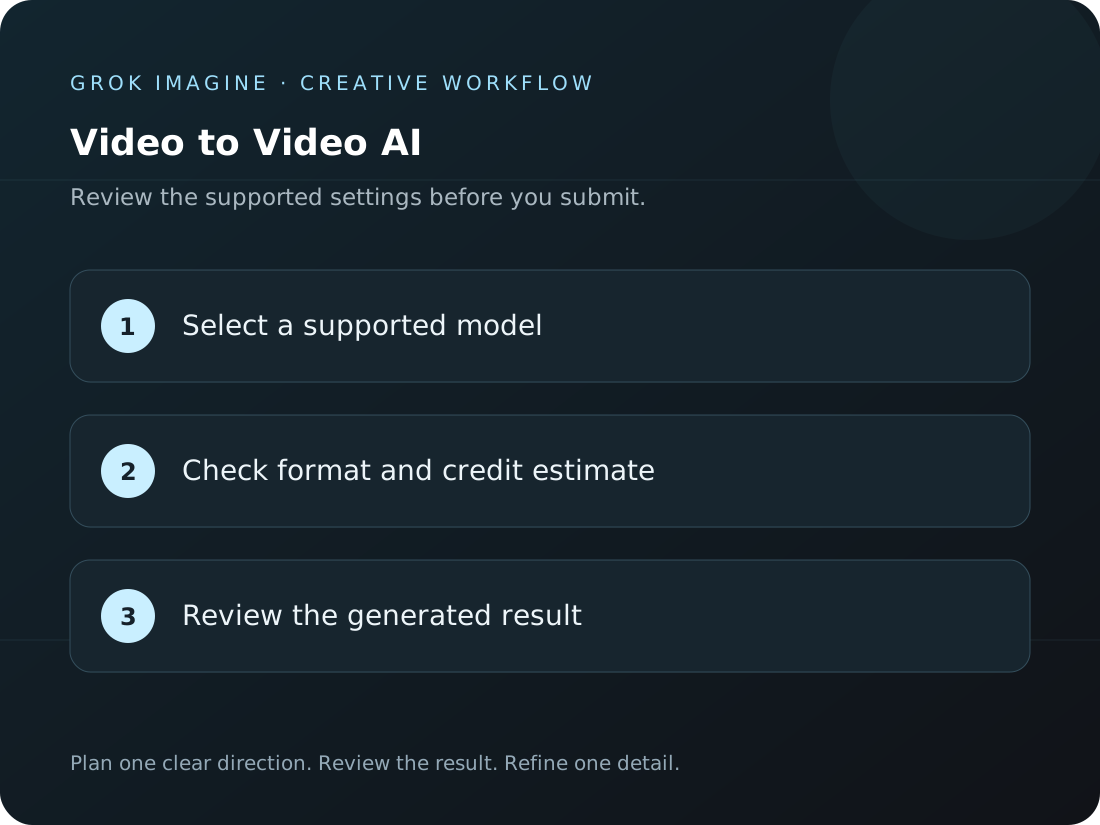
Select the reference-video workflow to see available models and their settings. Duration, aspect ratio, resolution, and credit estimates vary by model; rely on the options shown before submission. Settings vary by model. Before submitting, review the supported inputs, aspect ratios, output options, and credit estimate shown in the composer. After generation, inspect the subject, text, product details, and overall composition before saving a result.
How to use Grok Imagine to transform existing footage
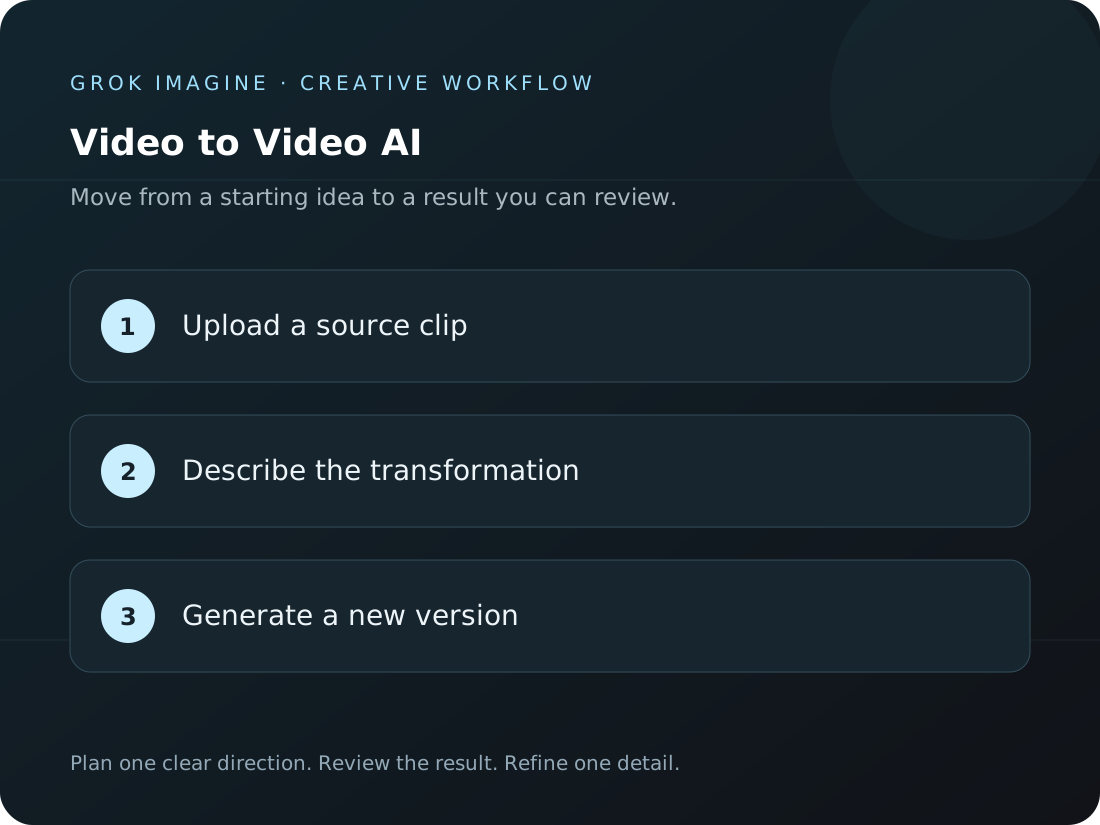
Upload a source clip → Describe the transformation → Generate a new version. Reference media can guide a subject, composition, or visual direction; it does not promise a frame-by-frame copy. Review the result and make sure you have permission to use the source material.
Grok Imageine
1
Upload a source clip
Add a reference video with the action or movement you want to build on.
2
Describe the transformation
Explain the visual or scene changes and choose supported video settings.
3
Generate a new version
Check the estimate, submit, and watch the new take in your Create workspace.
Which clips work well for a prompted transformation?
Choose a focused goal for the intended use, make a visual draft you can review, and decide what to change next.
Grok Imageine
Carry an action into a new style
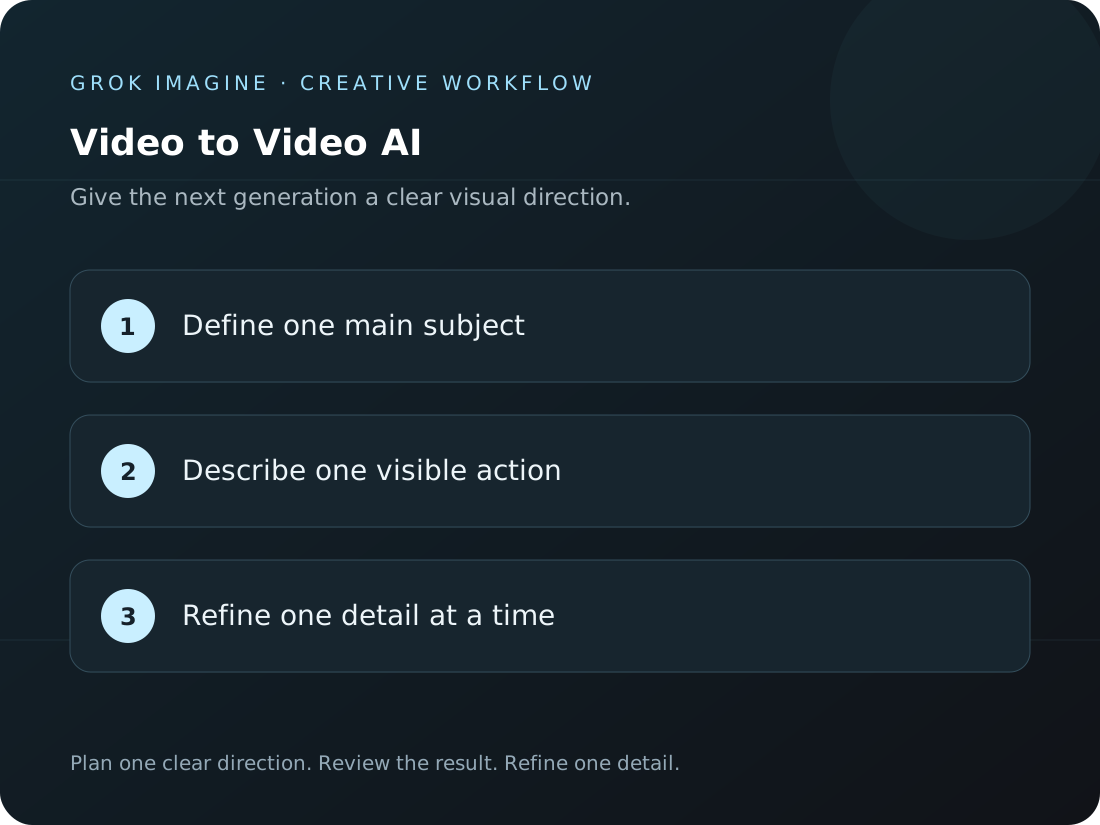
Use the workflow to transform existing footage with one creative goal you can review. Start with a simple input, then adjust the subject, composition, and visual focus. Keep useful prompt wording so the next iteration develops the same direction instead of changing every detail at once.
Grok Imageine
Explore a different setting
Use the workflow to transform existing footage as a visual draft for a campaign. Decide what the audience should notice first, then check whether the composition fits the intended placement. Review the generated scene before adding final captions, music, brand wording, or publishing details in your editing process.
Grok Imageine
Change one thing per take
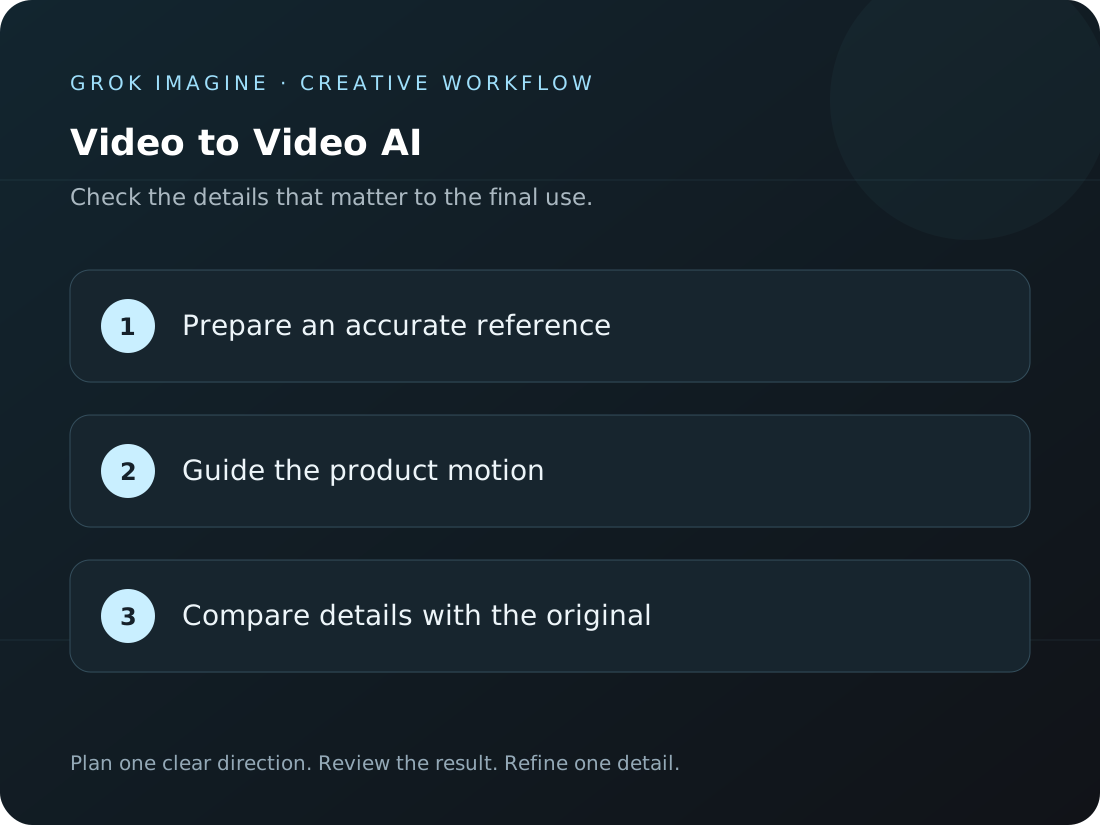
Use the workflow to transform existing footage with reference material you have permission to use. Identify which product features matter most in the brief. Generated text, proportions, and small textures may change, so compare the result with the original product information before using it in a listing or promotion.
Grok Imageine
Will the new clip copy the reference?
Use the workflow to transform existing footage from a brief that separates the subject, setting, style, and output goal. Change one major direction at a time and keep a record of the prompt and supported settings. Compare the alternatives against the original visual intent before choosing a version.
What can a focused scene prompt look like?
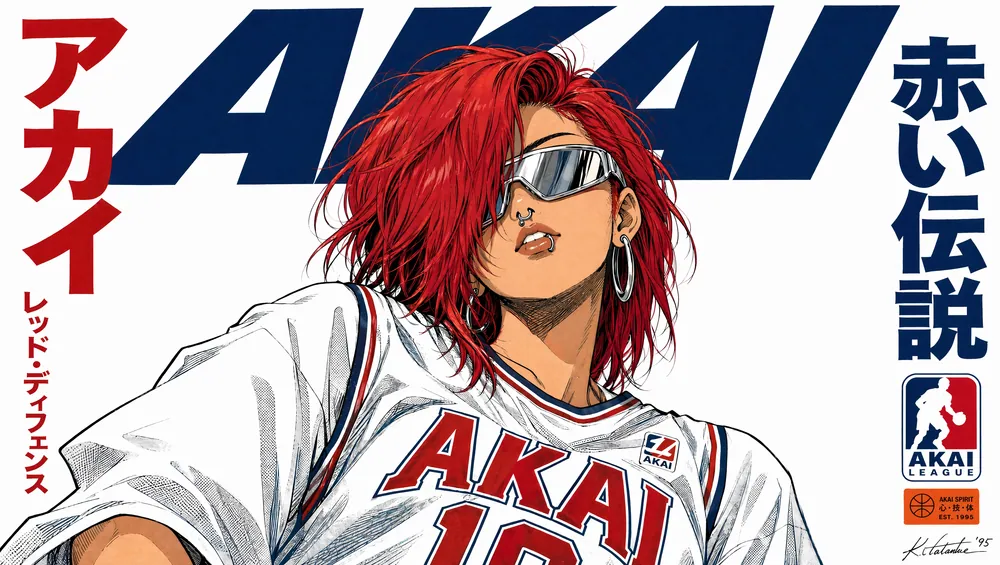
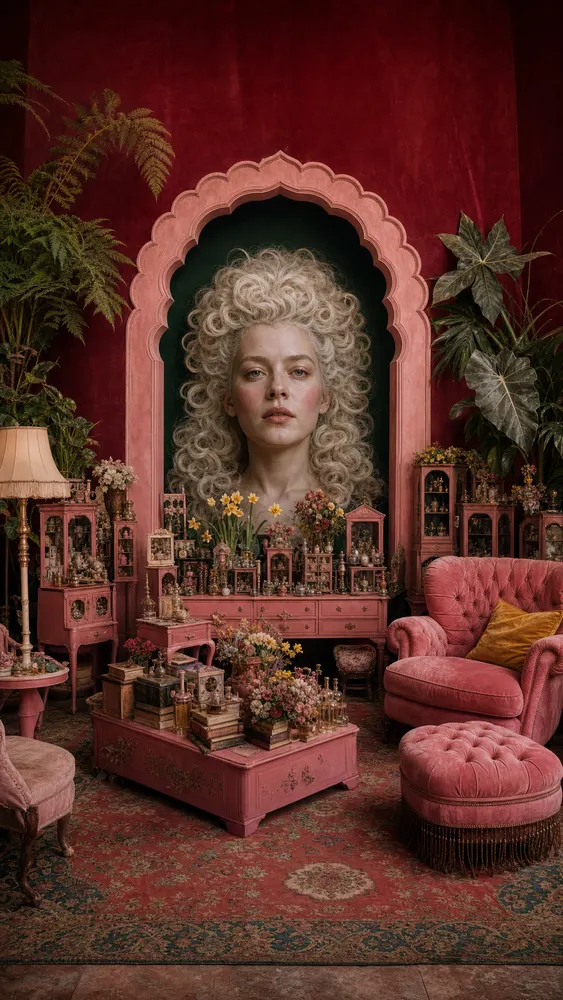
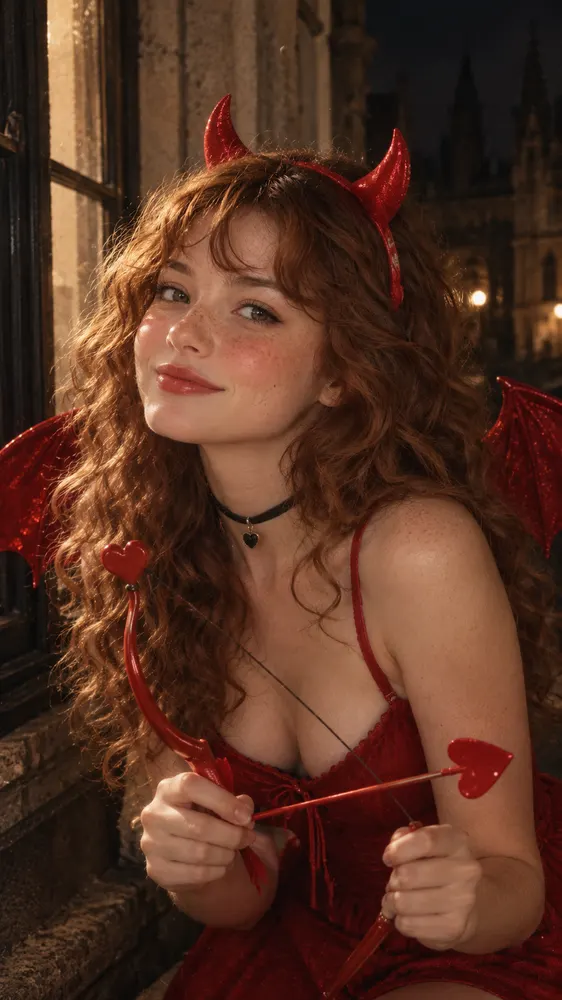
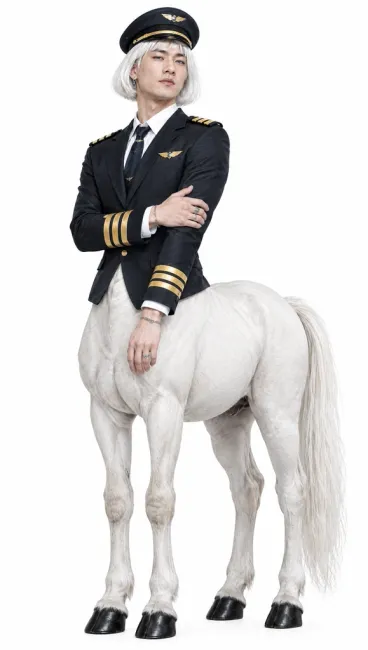
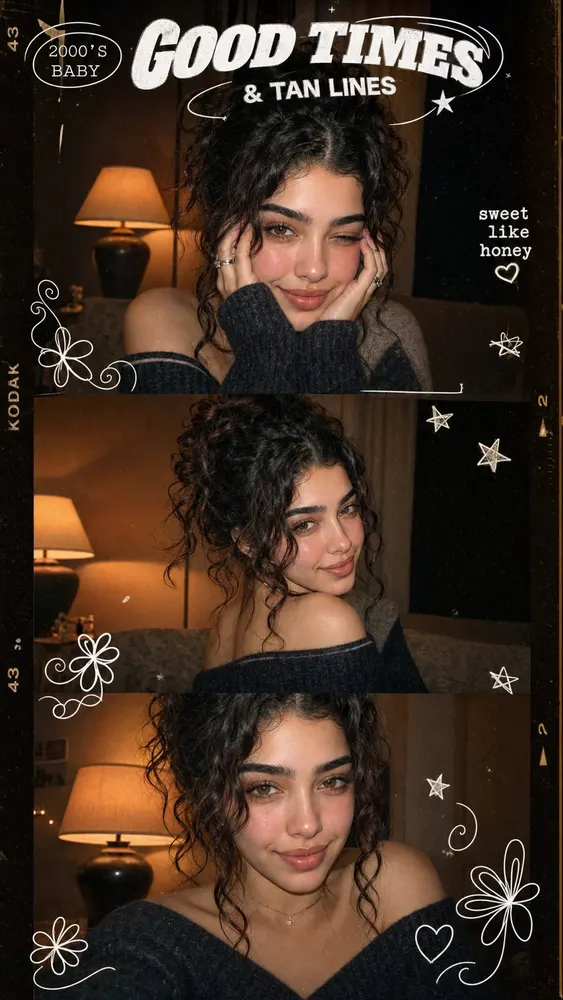
Start with a brief below, then refine one important detail after reviewing the result. The artwork illustrates visual directions; it does not promise a particular model output.
“
Prompt inspiration
Keep the subject walking, reinterpret the scene as a hand-painted animation with soft pastel colors
Plans for creators
Grok Imagine pricing for your next idea.
Choose a monthly plan, save with yearly billing, or add one-time credits whenever you need them.
Cancel anytime
Starter
$29.9/month
$29.90 billed monthly
For light creators trying things out
Includes
1,500 credits per month
AI image and video generation
Model-specific settings and credit estimates
Preview and download completed results
Popular
Pro
$49.9/month
$49.90 billed monthly
3.5K8K14K
For weekly creators with steady output
Everything in Starter, plus
3,500 credits per month
AI image and video generation
Model-specific settings and credit estimates
Preview and download completed results
Max
$199.9/month
$199.90 billed monthly
For pros and small studios with heavy needs
Everything in Pro, plus
22,000 credits per month
AI image and video generation
Model-specific settings and credit estimates
Preview and download completed results
Secure payment · Prices shown in USD
Questions to answer before transforming a clip
Review the input requirements, available settings, credit estimate, and result checks before you submit.
Does video-to-video keep the source clip unchanged?
No. It guides a new generation, so composition, timing, and details may change. Review the complete output.
What should I write in the prompt?
State what visual direction should change and what subject or movement should remain recognizable.
Can I upload any video?
Use a supported video file that you have permission to use. Upload limits and accepted formats appear in the creator.
What reference media can I use?
The reference-video workflow accepts image or video material supported by the composer, with a prompt describing the new direction. Actual inputs depend on the selected model and the upload options shown in the interface.
Will the new clip copy the reference?
Reference media can guide a subject, composition, or visual direction; it does not promise a frame-by-frame copy. Review the result and make sure you have permission to use the source material.
How can I compare model settings?
Select the reference-video workflow to see available models and their settings. Duration, aspect ratio, resolution, and credit estimates vary by model; rely on the options shown before submission.
Grok Imagine Video
Build a new take from existing footage
Add a source clip and a focused direction to explore another visual version.



 Grok Imageine