
Save 20% yearlyGrok Imagine from $23.90/month, billed annuallyView plans

Reference to Video AI

Guide a new video with existing footage. Add a reference clip, describe the scene and motion you want, and review supported model settings before generating.

Drag to reorder. Use the Left and Right Arrow keys when a reference is focused.
80 est.

This model accepts image references only. Choose Wan, MiniMax H3 or Seedance 2.5 to use a reference video.

Explore creative tools

Choose a Grok Imagine tool to remove distractions, edit a background or enhance a photo. Start with the task your image needs.

How can reference media guide a new video?

Guide a new video with existing footage. Add a reference clip, describe the scene and motion you want, and review supported model settings before generating.

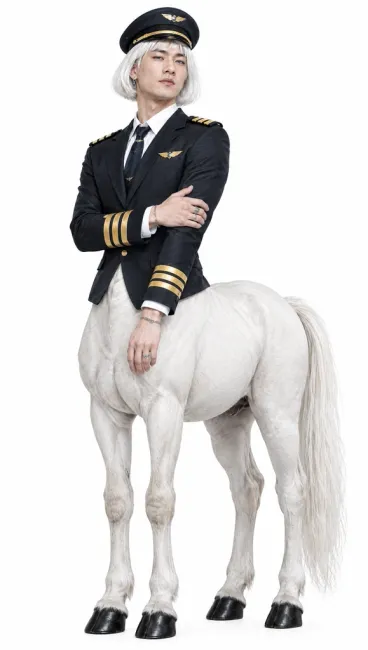
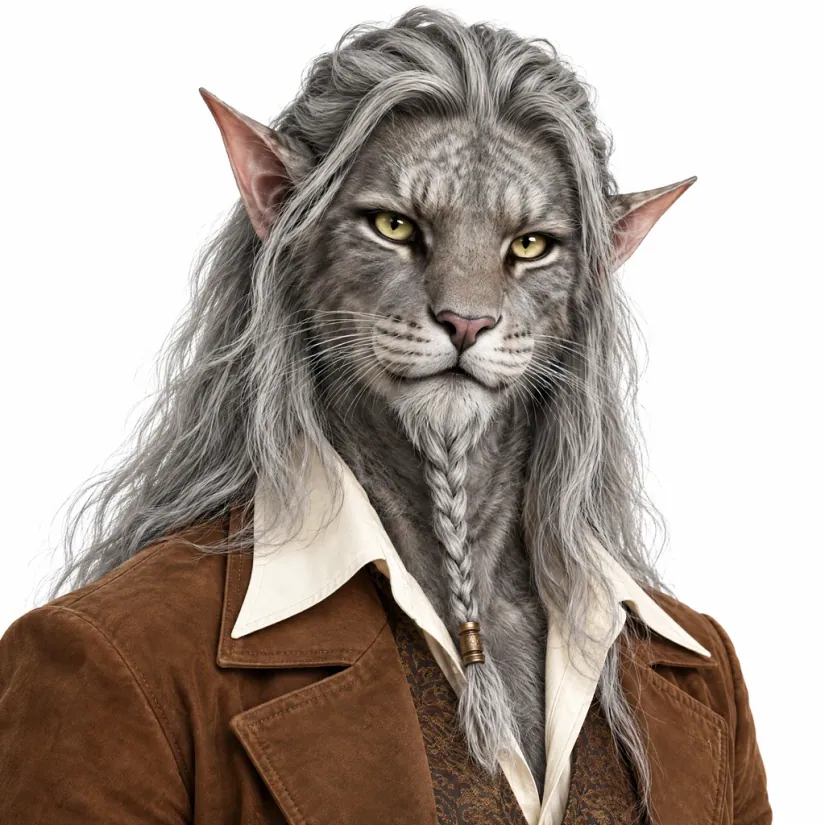
Silver-haired fantasy characterGrok Imageine
01

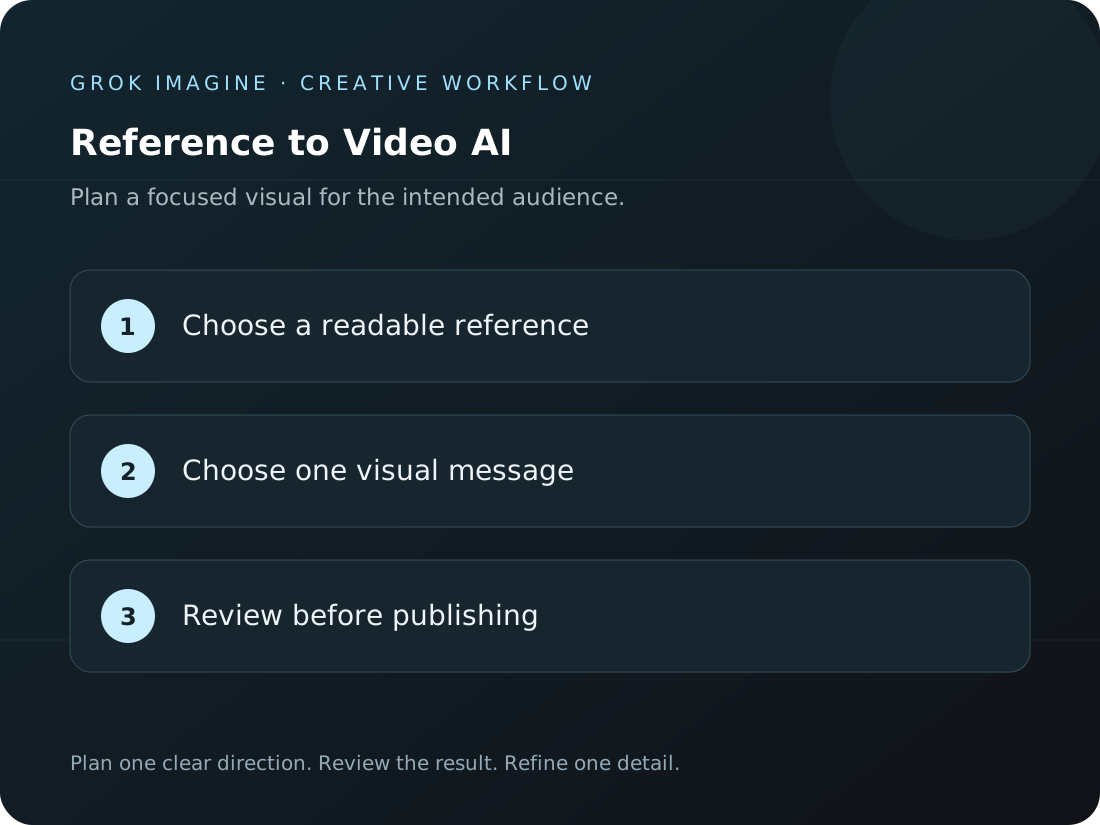
Choose a readable reference

Pick footage with a clear subject and visible action to make your direction easier to describe. A starting brief could be: Use the reference movement as loose guidance; create a cinematic forest path at dawn with a gentle camera arc. The reference-video workflow accepts image or video material supported by the composer, with a prompt describing the new direction. Actual inputs depend on the selected model and the upload options shown in the interface.
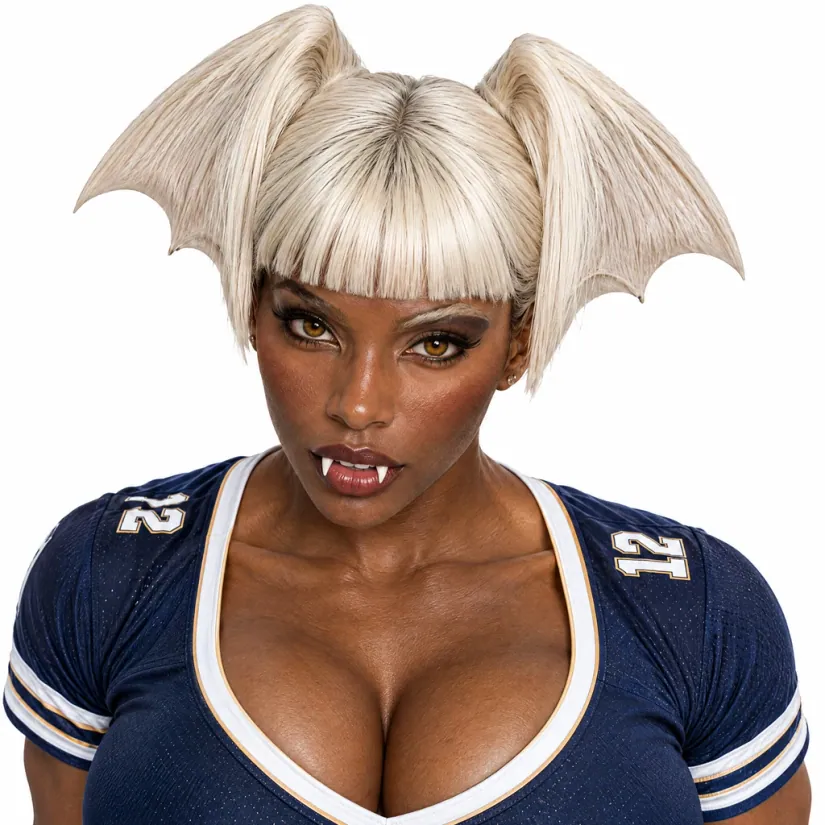
Fantasy character in a sports jerseyGrok Imageine
02

Describe the new setting

Explain what changes in the environment, lighting, or visual style without expecting a frame-for-frame copy. A starting brief could be: Keep the walking pace, shift the setting to a misty seaside promenade with cool morning light. Reference media can guide a subject, composition, or visual direction; it does not promise a frame-by-frame copy. Review the result and make sure you have permission to use the source material.

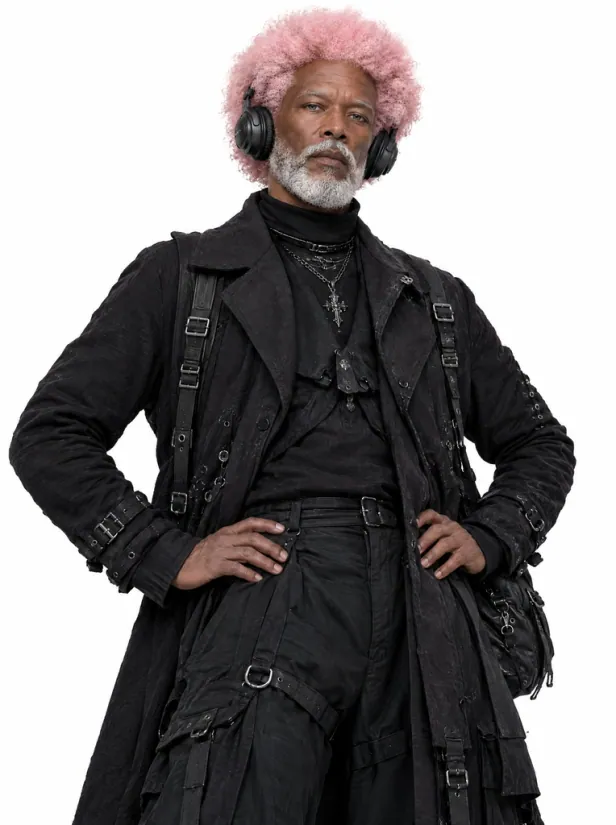
Dog character in a black coatGrok Imageine
03

Focus on one action

A single recognizable movement makes a generated take easier to compare with your reference. A starting brief could be: A person turns toward the camera and takes one step forward, steady framing, subtle dolly-in. Settings vary by model. Before submitting, review the supported inputs, aspect ratios, output options, and credit estimate shown in the composer. After generation, inspect the subject, text, product details, and overall composition before saving a result.

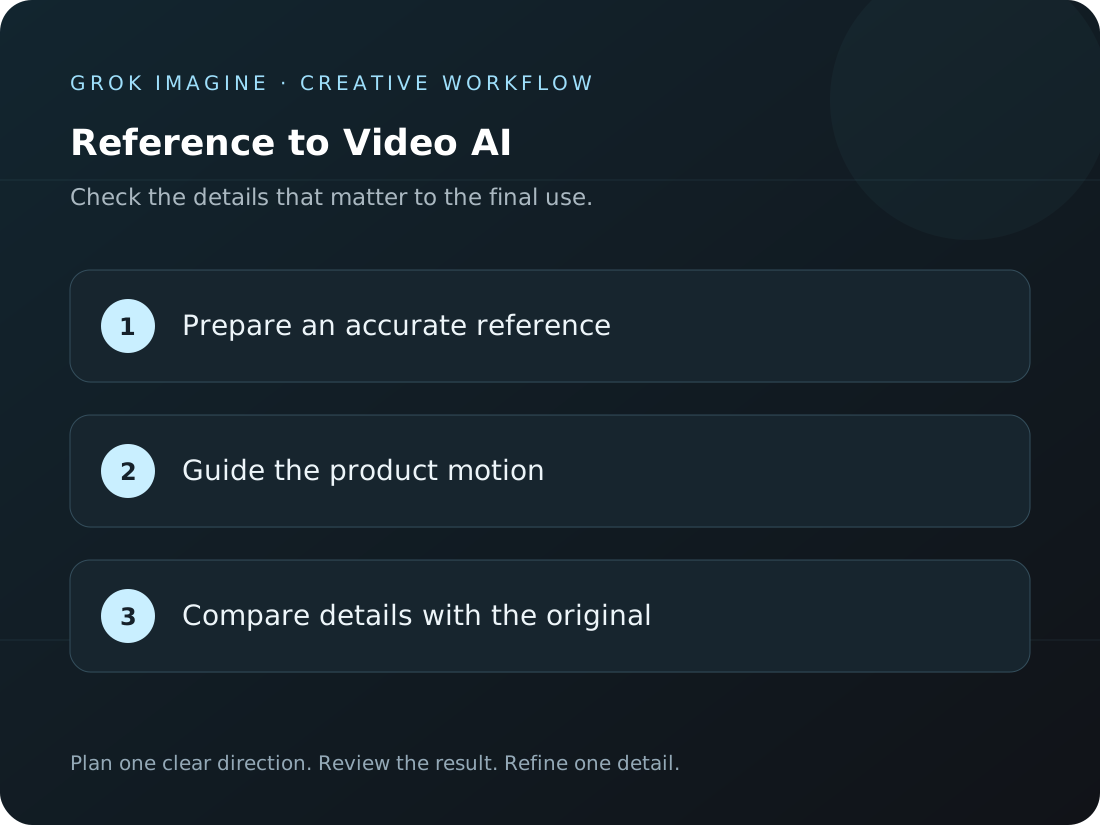
Reference to Video AI: model settings and output review checklistGrok Imageine
04

How can I compare model settings?

Select the reference-video workflow to see available models and their settings. Duration, aspect ratio, resolution, and credit estimates vary by model; rely on the options shown before submission. Settings vary by model. Before submitting, review the supported inputs, aspect ratios, output options, and credit estimate shown in the composer. After generation, inspect the subject, text, product details, and overall composition before saving a result.

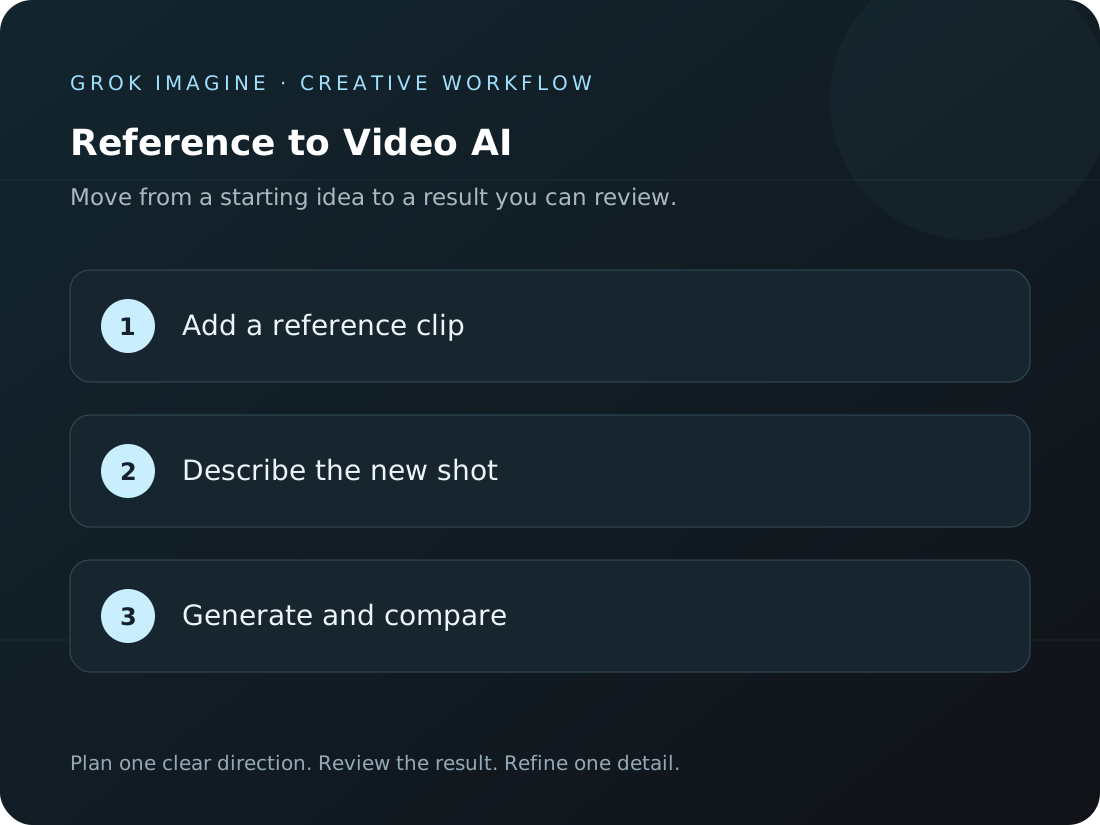
How to use Grok Imagine to guide a clip with reference media

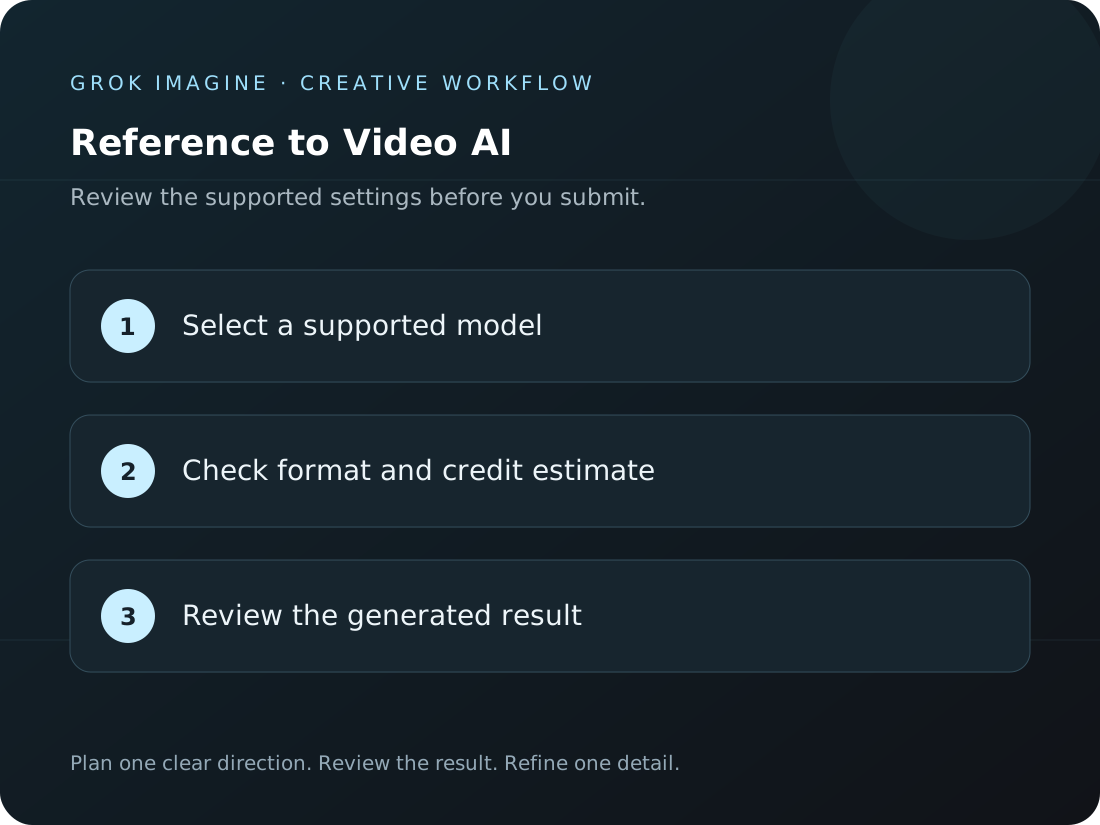
Add a reference clip → Describe the new shot → Generate and compare. Reference media can guide a subject, composition, or visual direction; it does not promise a frame-by-frame copy. Review the result and make sure you have permission to use the source material.

Reference to Video AI: three steps from a brief to a reviewed resultGrok Imageine
  1. 1

    Add a reference clip

    Upload footage you have permission to use, or select an available clip from your assets.

  2. 2

    Describe the new shot

    Explain the subject, setting, and motion you want the model to explore.

  3. 3

    Generate and compare

    Review supported settings and credits, then compare the new take with your reference.

What reference media can help guide a new scene?

Choose a focused goal for the intended use, make a visual draft you can review, and decide what to change next.

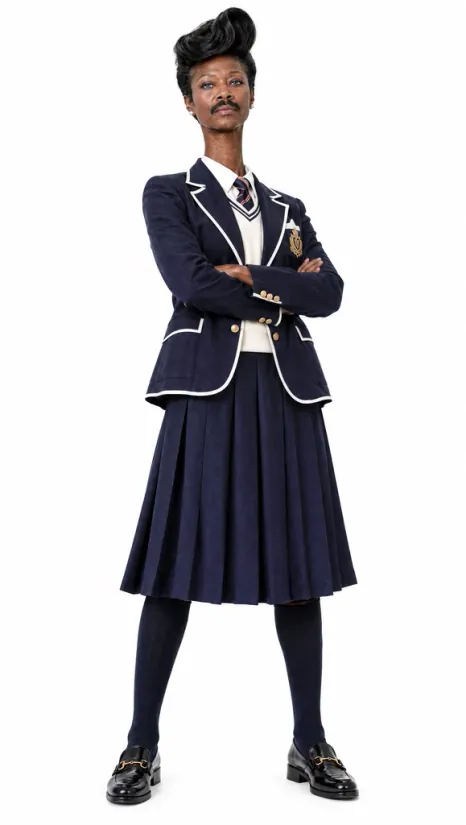
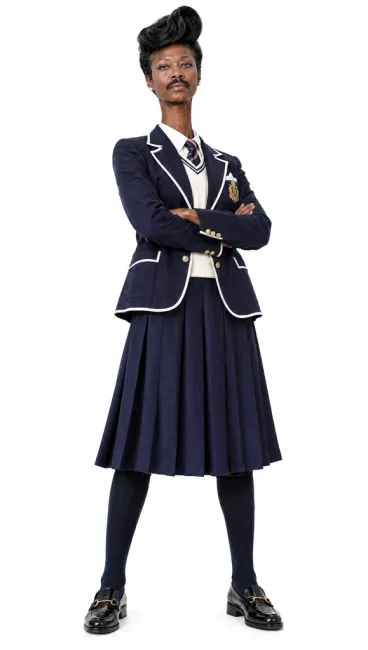
Illustrated character wearing a navy dressGrok Imageine

Choose a readable reference

Use the workflow to guide a clip with reference media with one creative goal you can review. Start with a simple input, then adjust the subject, composition, and visual focus. Keep useful prompt wording so the next iteration develops the same direction instead of changing every detail at once.

What can a focused scene prompt look like?

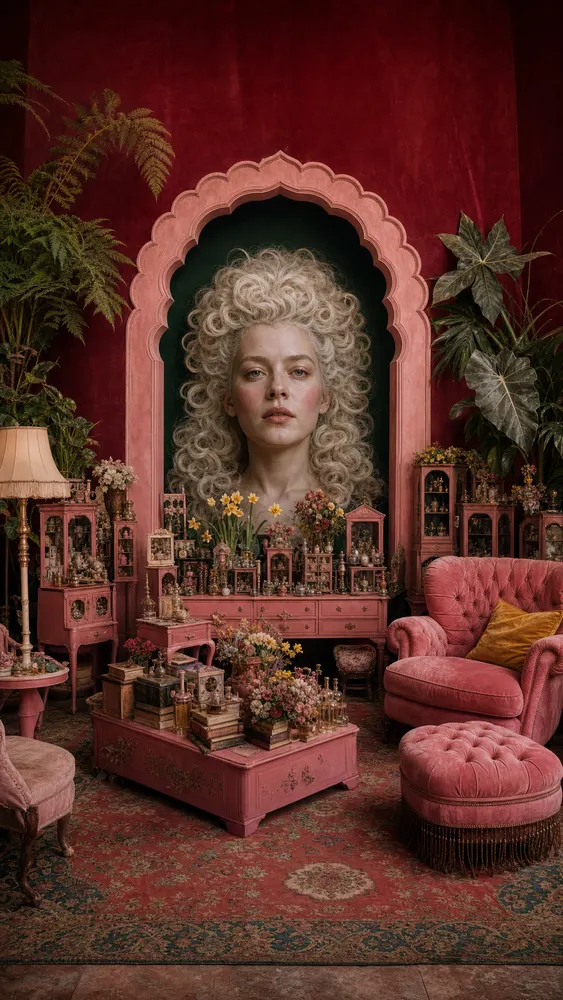
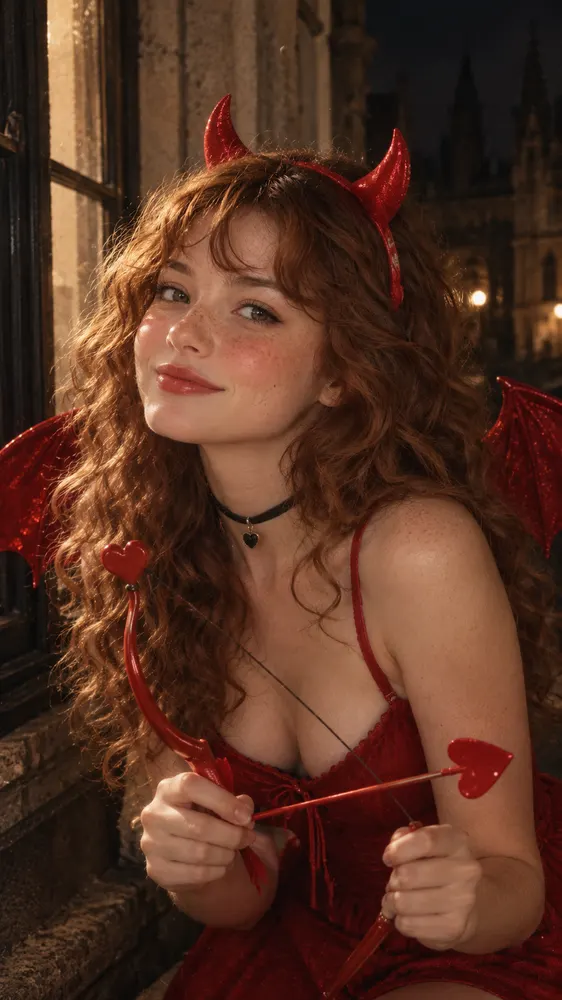
Start with a brief below, then refine one important detail after reviewing the result. The artwork illustrates visual directions; it does not promise a particular model output.

Prompt inspiration
Use the reference movement as loose guidance; create a cinematic forest path at dawn with a gentle camera arc
Choose a readable reference · 01 / 06
Plans for creators

Grok Imagine pricing for your next idea.

Choose a monthly plan, save with yearly billing, or add one-time credits whenever you need them.

Cancel anytime

Starter

$29.9/month

$29.90 billed monthly

For light creators trying things out

Includes
  • 1,500 credits per month
  • AI image and video generation
  • Model-specific settings and credit estimates
  • Preview and download completed results

Max

$199.9/month

$199.90 billed monthly

For pros and small studios with heavy needs

Everything in Pro, plus
  • 22,000 credits per month
  • AI image and video generation
  • Model-specific settings and credit estimates
  • Preview and download completed results
Secure payment · Prices shown in USD

Questions to answer before using video references

Review the input requirements, available settings, credit estimate, and result checks before you submit.

Need help? Contact support

Can I use a video URL as a reference?

This workflow uses uploaded video files or available saved media. A website link in the prompt does not import footage.

Will the result copy my reference exactly?

No. The reference guides a new generation. Timing, composition, and details can change, so review the complete clip.

What makes a useful reference clip?

Choose footage with a visible subject and a clear action or camera move, then describe which parts should guide the new shot.

What reference media can I use?

The reference-video workflow accepts image or video material supported by the composer, with a prompt describing the new direction. Actual inputs depend on the selected model and the upload options shown in the interface.
Will the new clip copy the reference?

Reference media can guide a subject, composition, or visual direction; it does not promise a frame-by-frame copy. Review the result and make sure you have permission to use the source material.

How can I compare model settings?

Select the reference-video workflow to see available models and their settings. Duration, aspect ratio, resolution, and credit estimates vary by model; rely on the options shown before submission.

Grok Imagine Video

Bring a reference to your next idea

Choose a clip with a clear action and describe the new direction you want to explore.

See pricing