Save 20% yearlyGrok Imagine from $23.90/month, billed annuallyView plans
AI Image Generator
Create product scenes, portraits, and original artwork from a written brief. Choose an image model, shape the composition, and generate a version to refine.
Drag to reorder. Use the Left and Right Arrow keys when a reference is focused.
How can you create an image from an idea or reference?
Create product scenes, portraits, and original artwork from a written brief. Choose an image model, shape the composition, and generate a version to refine.
Grok Imageine
01
Build a product scene
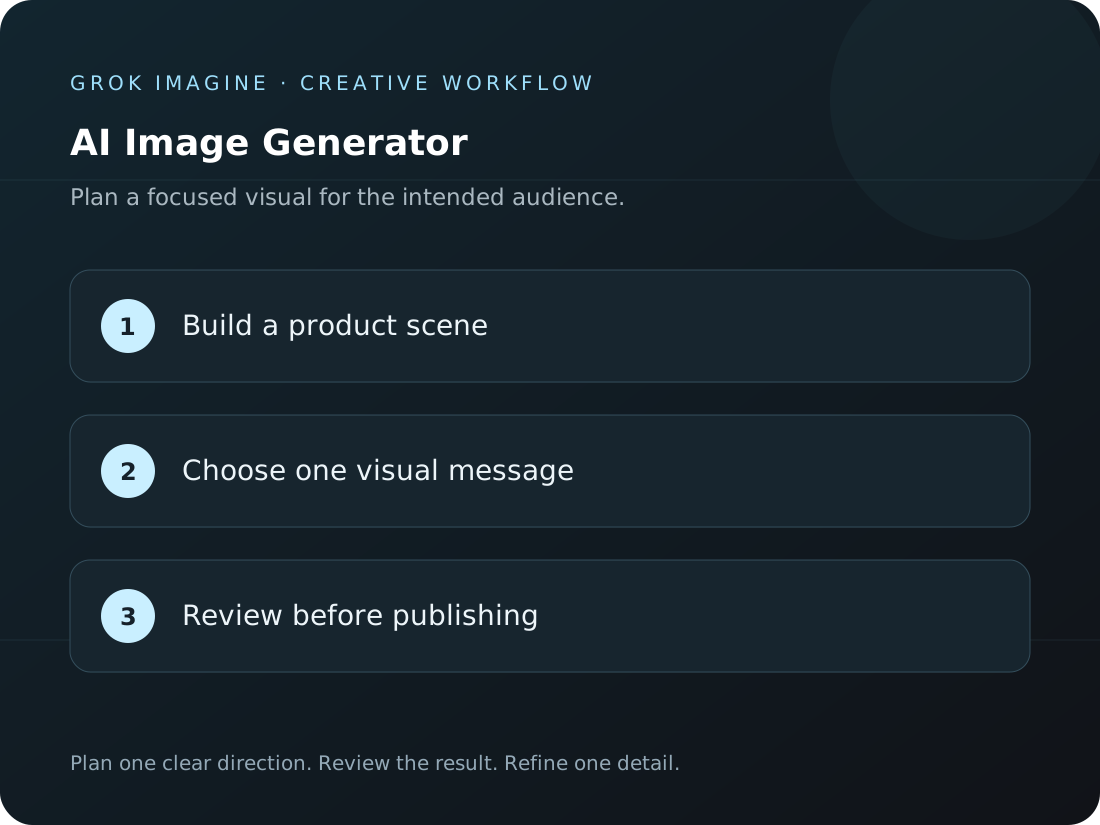
Describe the object, material, surface, and lighting for a product visual you can review. A starting brief could be: Minimal glass skincare bottle on a pale limestone pedestal, soft morning light, editorial product photo. Name the subject, setting, and visual style, then add important details such as lighting, composition, or material. Begin with one clear direction and refine individual elements after generation.
Grok Imageine
02
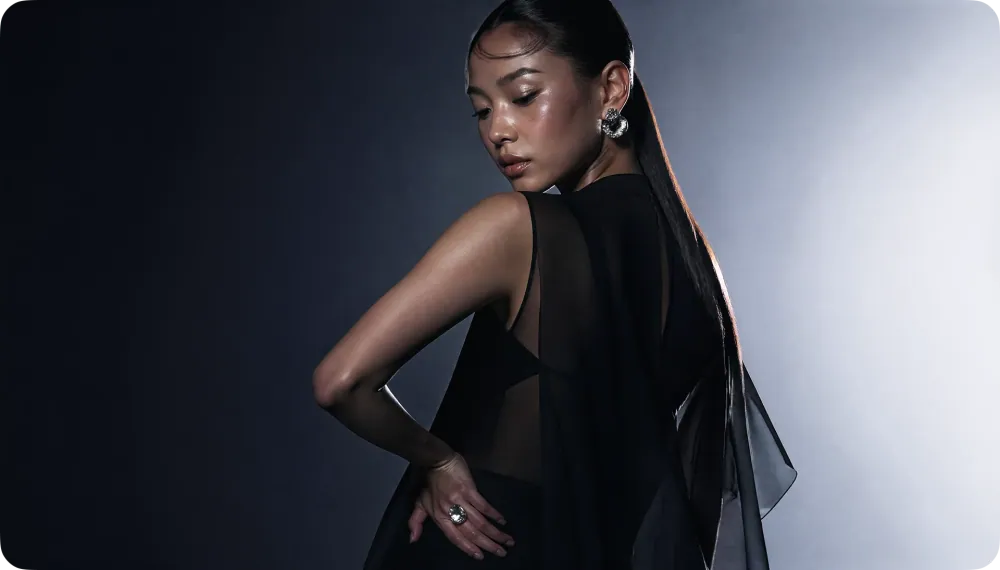
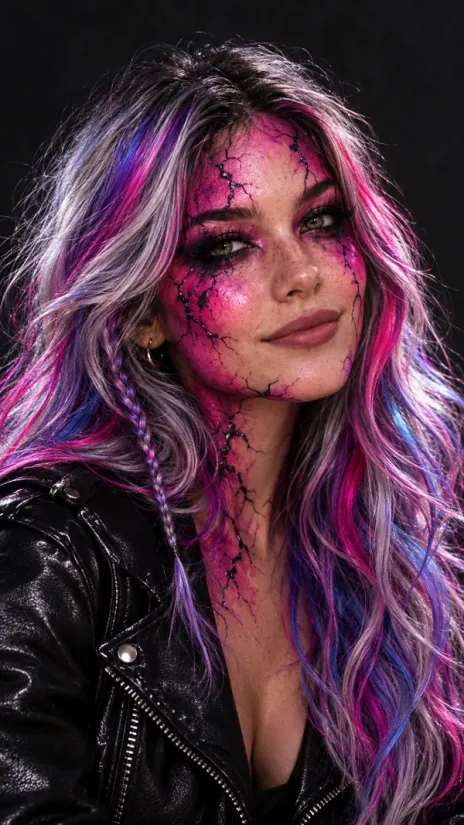
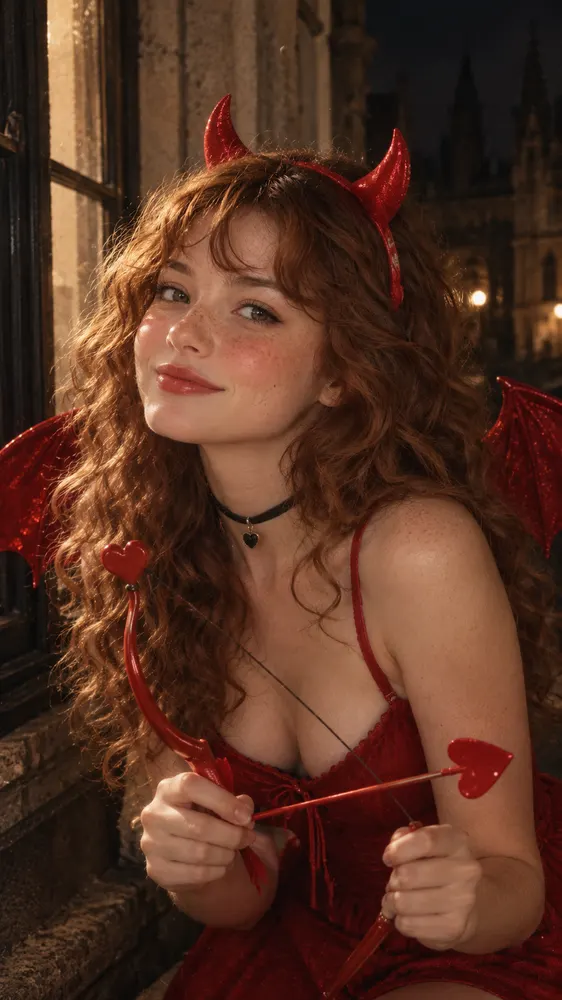
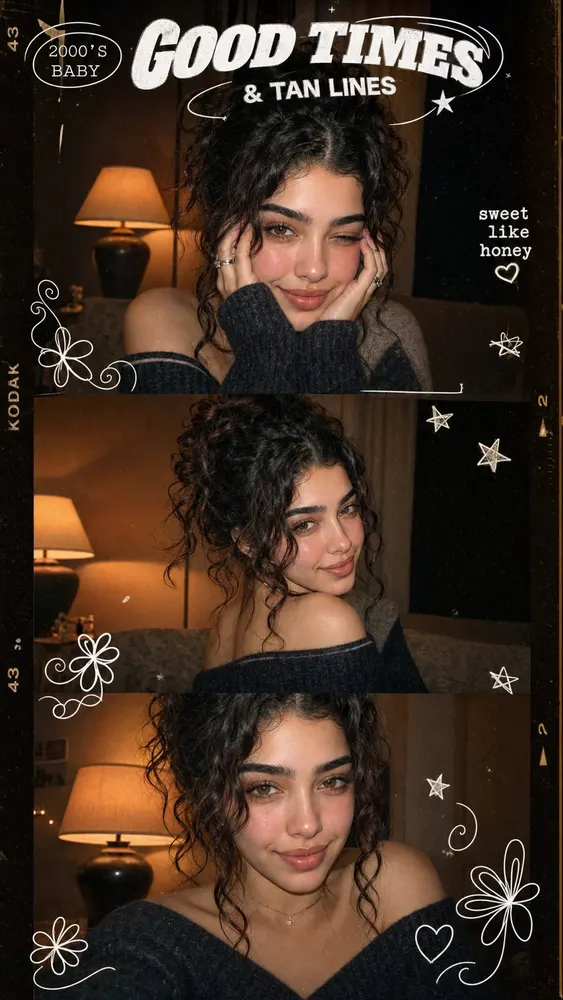
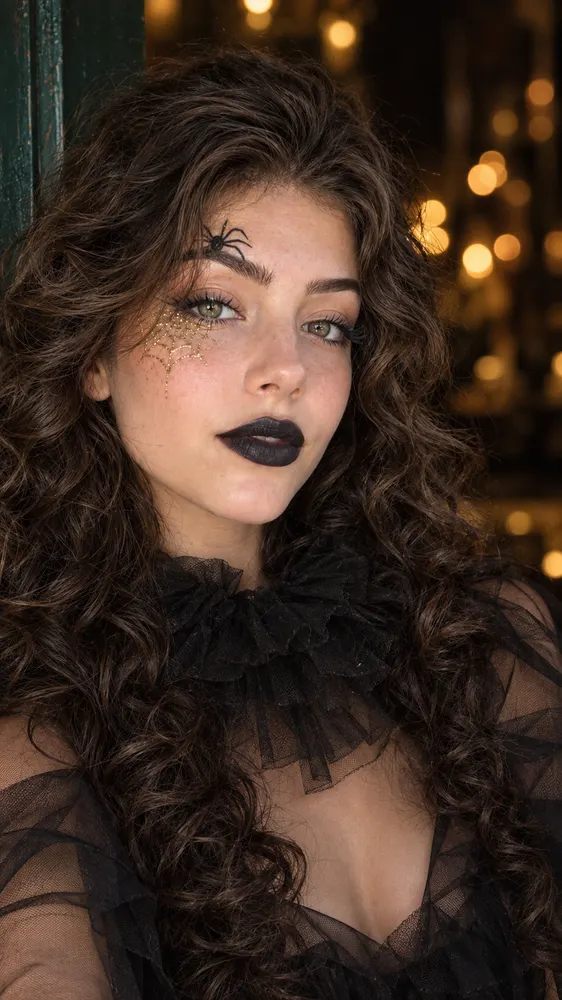
Shape a portrait
Set the framing, expression, background, and light before choosing your visual style. A starting brief could be: Editorial portrait beside a large studio window, natural skin texture, warm directional light. This workflow creates an image from a written prompt. Available aspect ratios, sizes, and other output options depend on the selected model; the composer shows supported settings before submission.
Grok Imageine
03
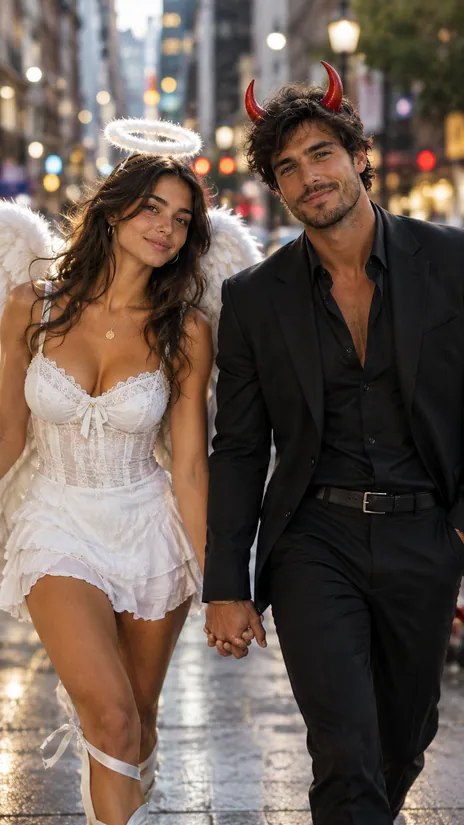
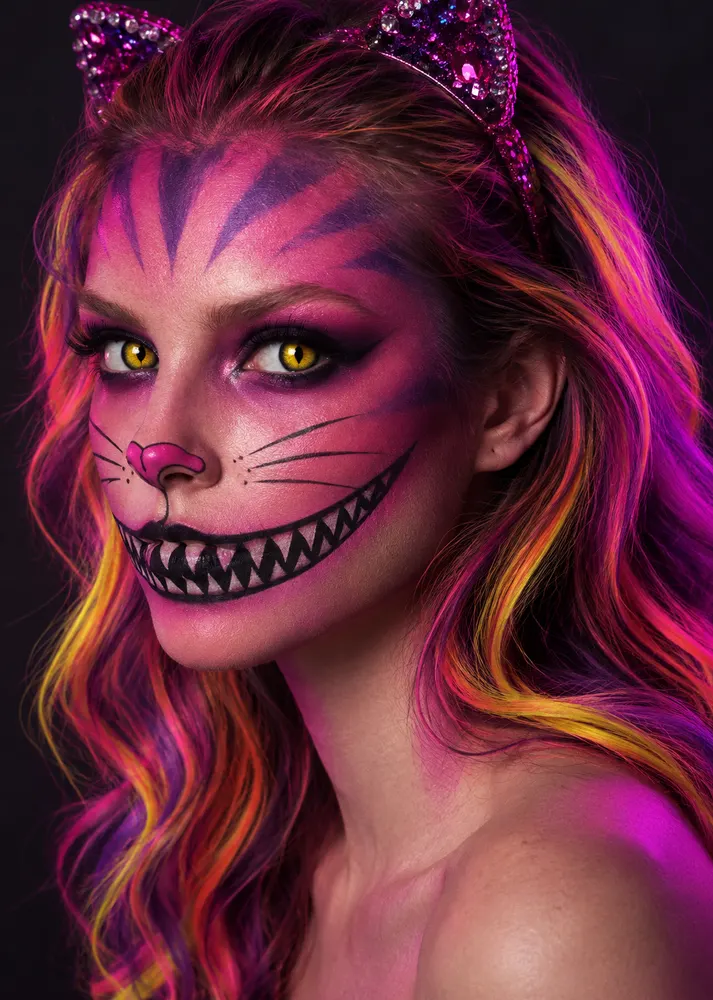
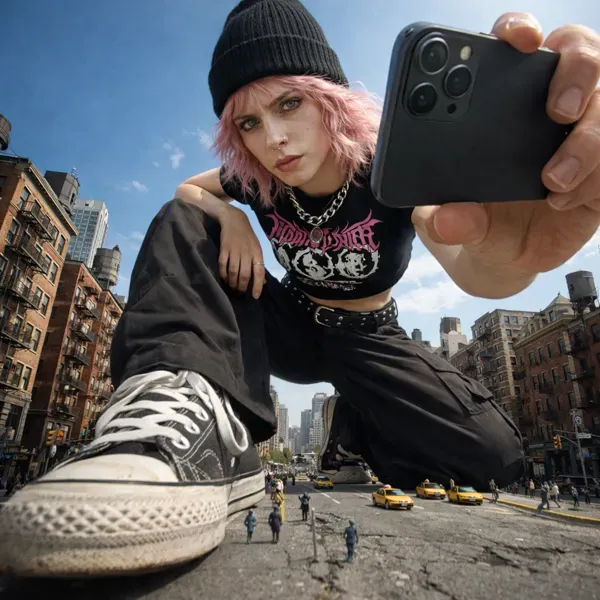
Explore an original visual
Combine a subject with a setting and color palette to start a new illustration or concept. A starting brief could be: A floating garden above a quiet ocean, delicate botanical details, dreamy teal and coral palette. Settings vary by model. Before submitting, review the supported inputs, aspect ratios, output options, and credit estimate shown in the composer. After generation, inspect the subject, text, product details, and overall composition before saving a result.
Grok Imageine
04
How can I guide the visual style?
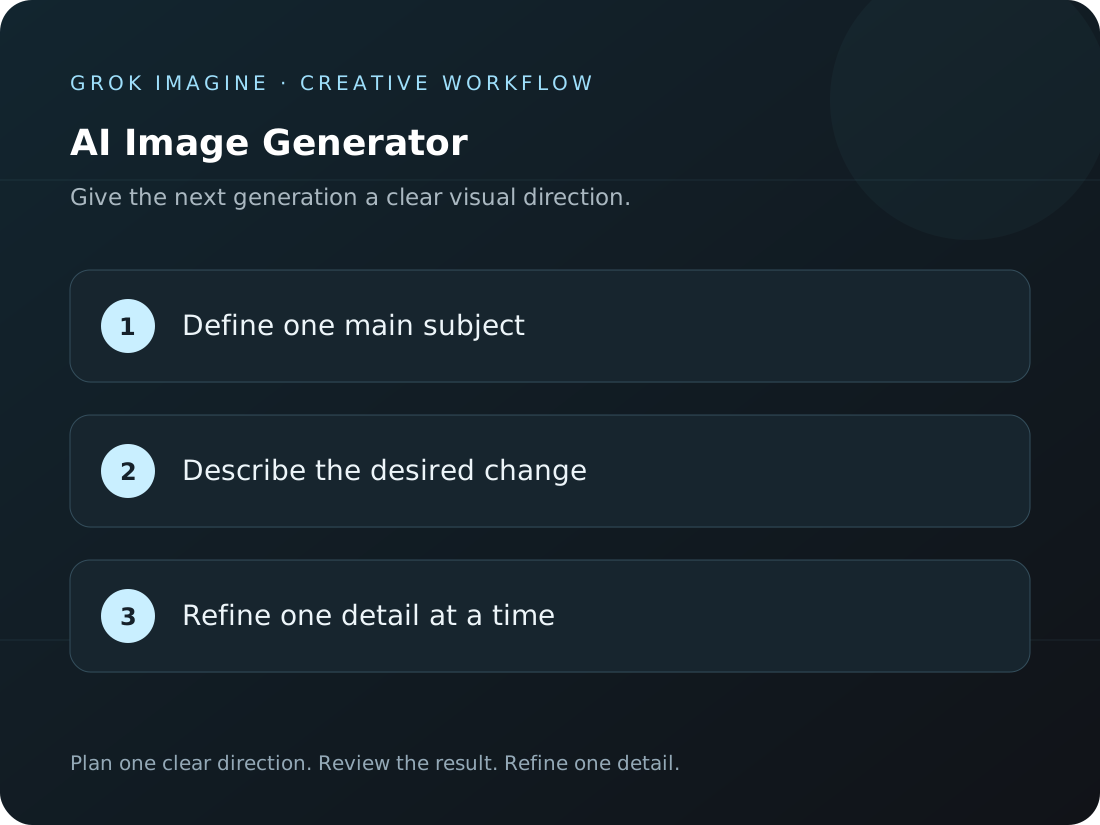
Describe a photography, illustration, color, or composition direction in the prompt, then choose a model and a supported size. Style behavior and available settings can differ across models. Settings vary by model. Before submitting, review the supported inputs, aspect ratios, output options, and credit estimate shown in the composer. After generation, inspect the subject, text, product details, and overall composition before saving a result.
How to use Grok Imagine to create a new image
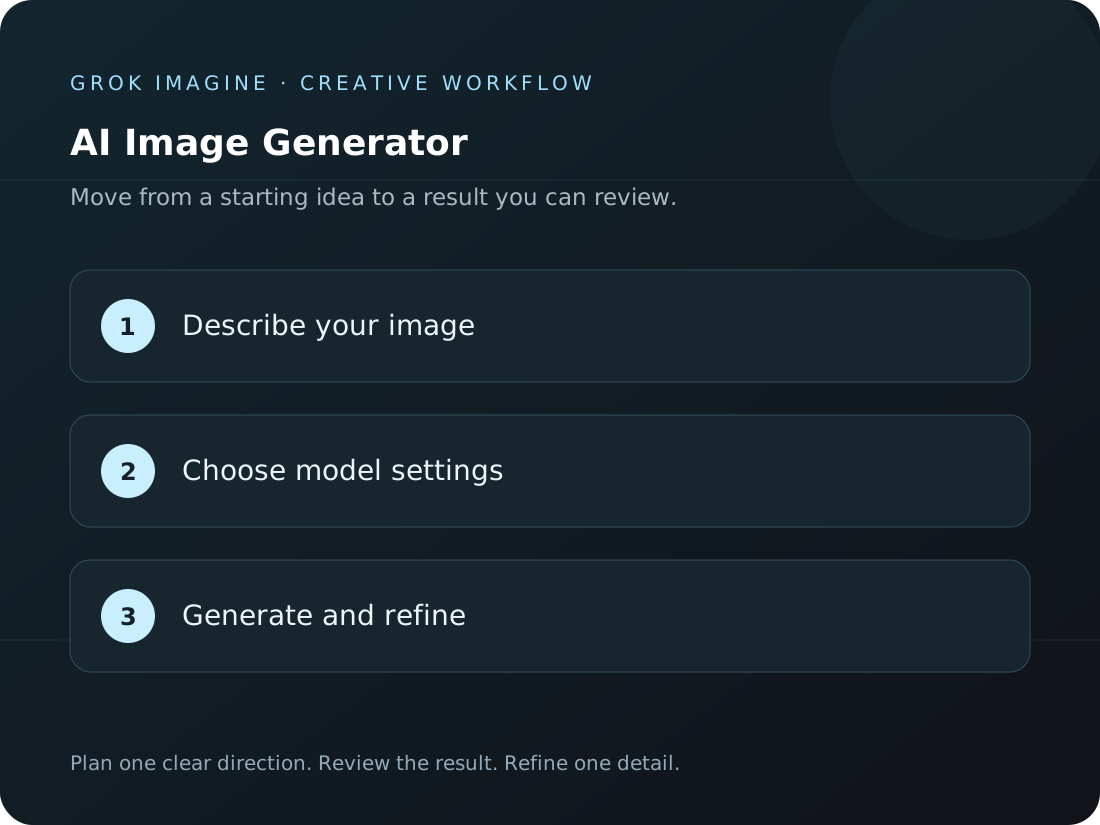
Describe your image → Choose model settings → Generate and refine. This workflow creates an image from a written prompt. Available aspect ratios, sizes, and other output options depend on the selected model; the composer shows supported settings before submission.
Grok Imageine
1
Describe your image
Name the subject, setting, and visual direction you want to explore.
2
Choose model settings
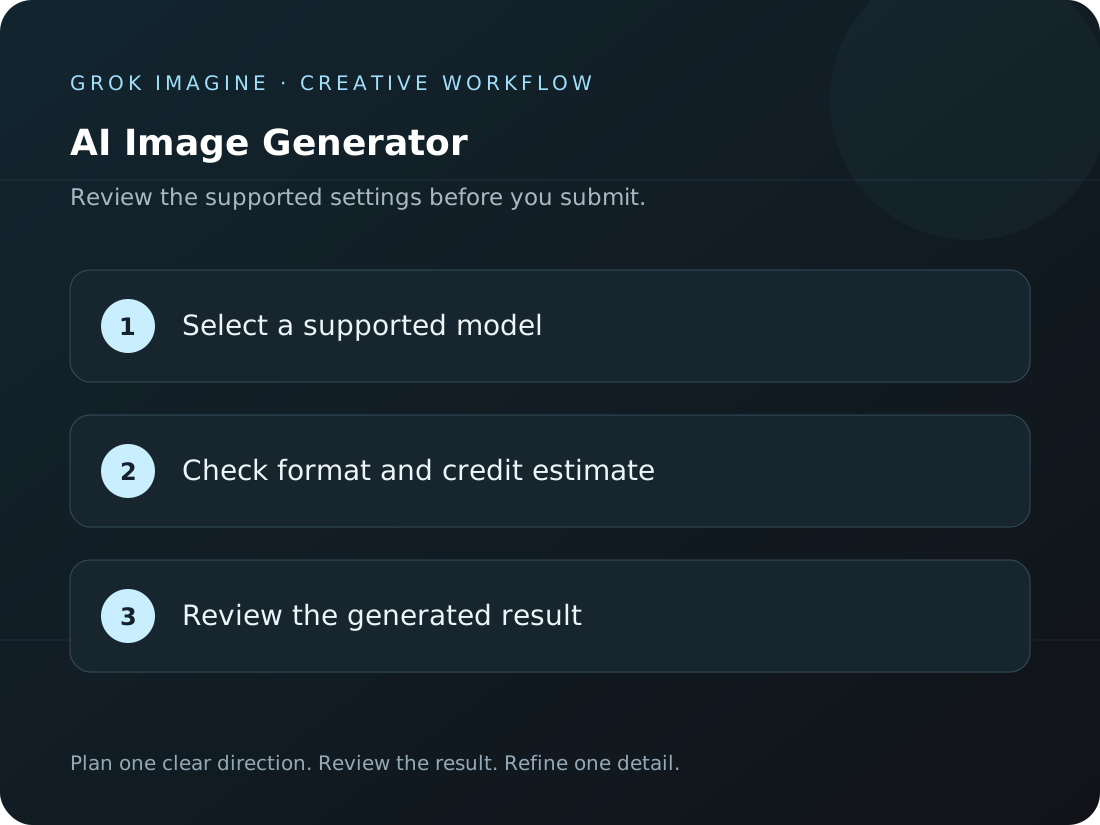
Select an available image model and review its supported ratio, resolution, and credit estimate.
3
Generate and refine
Review the image, adjust one prompt detail, and create another version if needed.
What kinds of ideas can you turn into images?
Choose a focused goal for the intended use, make a visual draft you can review, and decide what to change next.
Grok Imageine
Build a product scene
Use the workflow to create a new image with one creative goal you can review. Start with a simple input, then adjust the subject, composition, and visual focus. Keep useful prompt wording so the next iteration develops the same direction instead of changing every detail at once.
Grok Imageine
Shape a portrait
Use the workflow to create a new image as a visual draft for a campaign. Decide what the audience should notice first, then check whether the composition fits the intended placement. Review the generated scene before adding final captions, music, brand wording, or publishing details in your editing process.
Grok Imageine
Explore an original visual
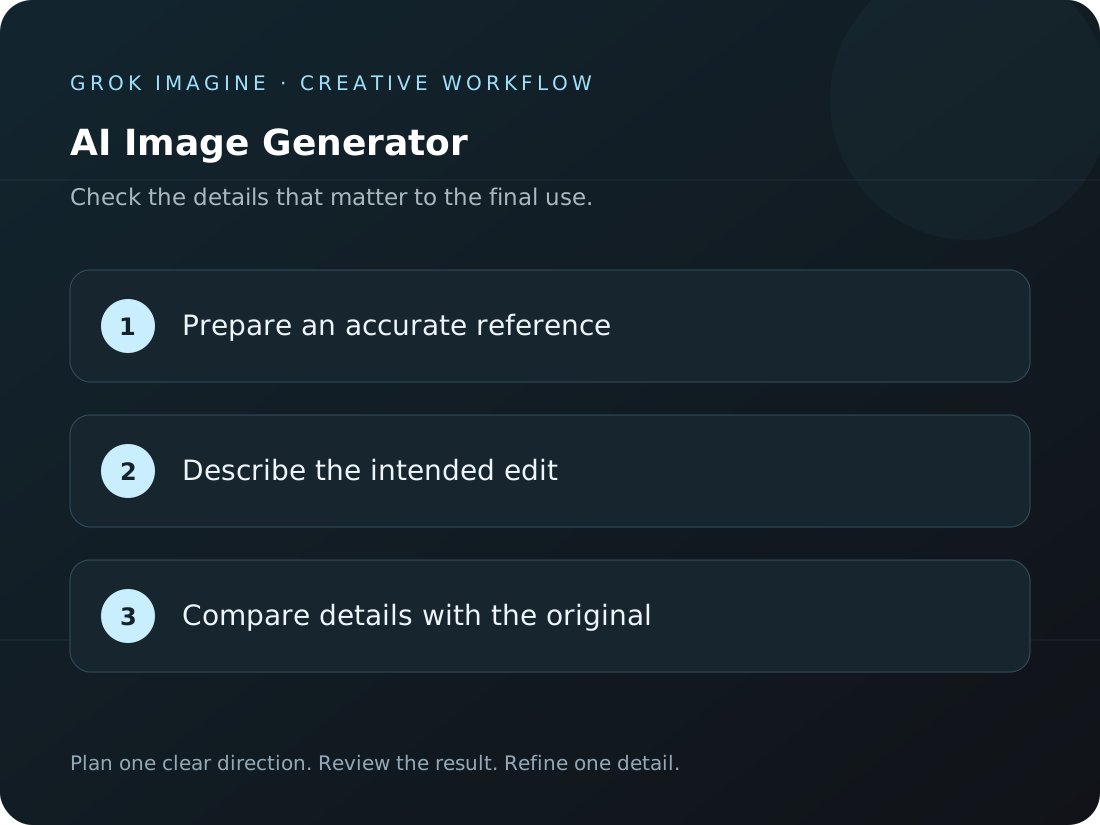
Use the workflow to create a new image with reference material you have permission to use. Identify which product features matter most in the brief. Generated text, proportions, and small textures may change, so compare the result with the original product information before using it in a listing or promotion.
Grok Imageine
What image output should I expect?
Use the workflow to create a new image from a brief that separates the subject, setting, style, and output goal. Change one major direction at a time and keep a record of the prompt and supported settings. Compare the alternatives against the original visual intent before choosing a version.
What can a focused image brief look like?
Start with a brief below, then refine one important detail after reviewing the result. The artwork illustrates visual directions; it does not promise a particular model output.
“
Prompt inspiration
Minimal glass skincare bottle on a pale limestone pedestal, soft morning light, editorial product photo
Plans for creators
Grok Imagine pricing for your next idea.
Choose a monthly plan, save with yearly billing, or add one-time credits whenever you need them.
Cancel anytime
Starter
$29.9/month
$29.90 billed monthly
For light creators trying things out
Includes
1,500 credits per month
AI image and video generation
Model-specific settings and credit estimates
Preview and download completed results
Popular
Pro
$49.9/month
$49.90 billed monthly
3.5K8K14K
For weekly creators with steady output
Everything in Starter, plus
3,500 credits per month
AI image and video generation
Model-specific settings and credit estimates
Preview and download completed results
Max
$199.9/month
$199.90 billed monthly
For pros and small studios with heavy needs
Everything in Pro, plus
22,000 credits per month
AI image and video generation
Model-specific settings and credit estimates
Preview and download completed results
Secure payment · Prices shown in USD
Questions to answer before creating an image
Review the input requirements, available settings, credit estimate, and result checks before you submit.
Create product scenes, portraits, illustrations, and social visuals from a prompt. Add a reference when you want to guide an edit and the model supports it.
Can I generate an image from a photo?
Yes. Select an image-to-image workflow, upload a reference you have permission to use, and describe what you want to change.
How do I check image generation credits?
Choose a model and supported settings. The generation composer displays the estimated credits before you submit.
What should an image prompt describe?
Name the subject, setting, and visual style, then add important details such as lighting, composition, or material. Begin with one clear direction and refine individual elements after generation.
What image output should I expect?
This workflow creates an image from a written prompt. Available aspect ratios, sizes, and other output options depend on the selected model; the composer shows supported settings before submission.
How can I guide the visual style?
Describe a photography, illustration, color, or composition direction in the prompt, then choose a model and a supported size. Style behavior and available settings can differ across models.
Grok Imagine Image
Create the image your project needs
Describe your subject, choose a model, and review the generation estimate before creating your first image.


 Grok Imageine